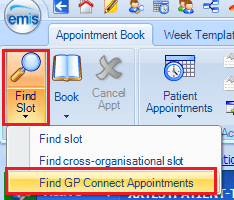
In the GP Practice, booking staff must be logged on with a Smartcard with the appropriate role to use GP Connect Appointments. In Appointment Book click on Find Slot > Find GP Connect Appointments:
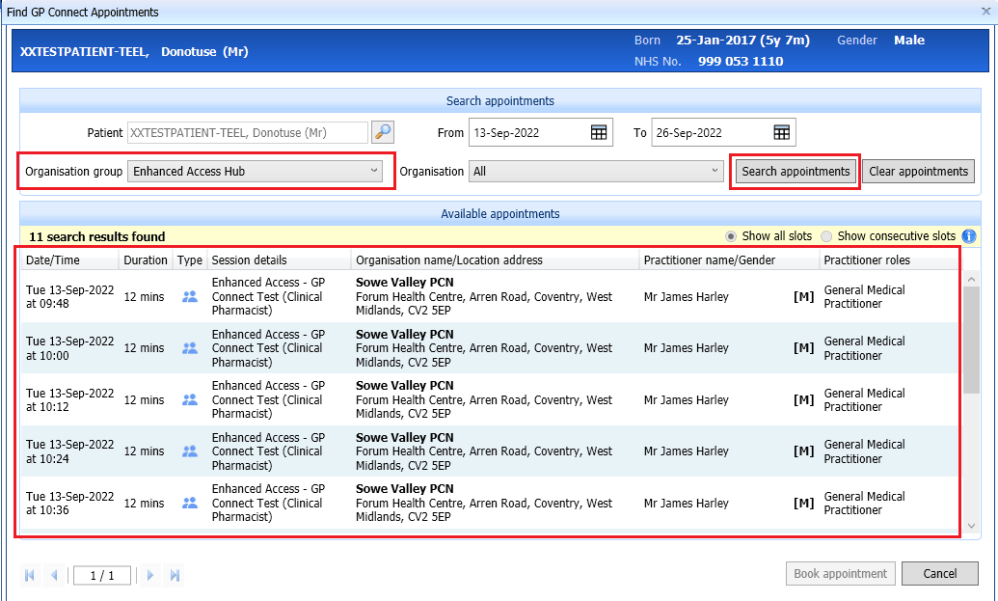
Select the correct Organisation group and click on Search appointments. A List of GP Connect Bookable Appointments in the hub will appear. Select an appropriate slot and click on Book appointment:
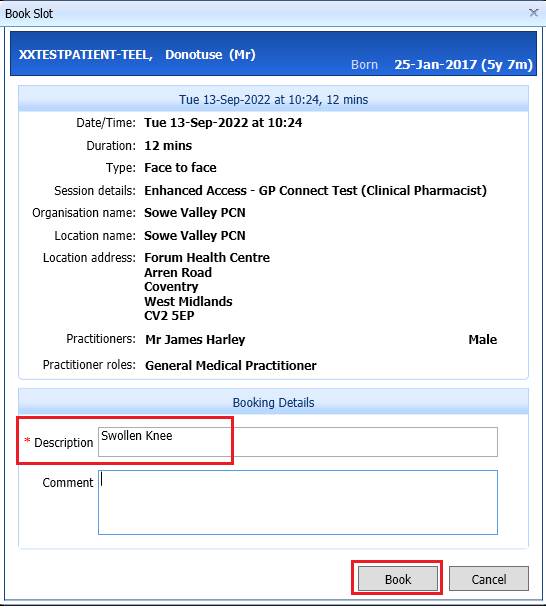
Enter a Description for the booking and, if required, a Comment. Click on Book:
EMIS Hub booked Patient
In the clinical hub the patient is booked in as a registered patient. There is no requirement to Trace the patient in from the NHS Spine (PDS) or GP Practice (Data Sharing):

A patient booked using GP Connect will have a purple patient précis:

After a Consultation has been completed for the patient in the Hub, their Consultation details (notes, clinical codes, Electronic Prescriptions, clinical document , etc.) will be automatically sent back to the patients GP Practice via the Consultation Write Back Enterprise Agreement:

The GP Practice will see the Consultation as an Enterprise consultation with a Blue/Green/Yellow symbol next to it:

Inactive Patients
After 28 days, patients booked into a Clinical Services hub via GP Connect will become Inactive. If this patient is booked into the hub again via GP Connect after 28 days they will stay Inactive – however Consultations and Consultation Write Back will still work. But there may be other reasons a hub will wish to make this patient Active again. To do this, hub staff will have to Re-Register the patient again in Registration:

 Digital PCN HUB Optimisation