Before activating a Consultation Write Back Agreement, you must first nominate a Prescribing User for the Agreement Properties and ensure they are configured correctly.
A Prescribing User is required because the Enterprise Agreement also allows booking of Remote Consultations; however, even though the PCN will not use this feature, it is still a requirement. Some PCNS set up a generic user, such as ‘Extended Access, GP (DR)’, just for this purpose.
The nominated Prescribing User must have a GMP PPD Code:
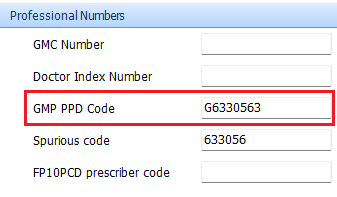
You can find your organisation’s GMP PPD Code on the ODS Portal here. Enter your organisation’s Y Code in the Organisation Search and then expand the section labelled GENERAL MEDICAL PRACTITIONER:

and have a Job Category of General Medical Practitioner:

When your PCN is ready to use this service, this agreement must be activated in EMIS Web (to access Data Sharing Manager in EMIS users must have the RBAC activity B0109 Local Restricted System Administration). In EMIS navigate to Configuration > Data Sharing Manager. Select Appointments, under the Enterprise heading select the Agreement and click on Activate Agreement button:
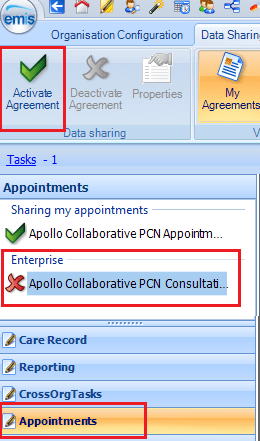
The first window will show the Agreement Terms:

Click on Next. In the Agreement properties, select the Formulary (usually EMIS Standard unless the PCN has uploaded a localised version) and the Prescribing User referenced above.
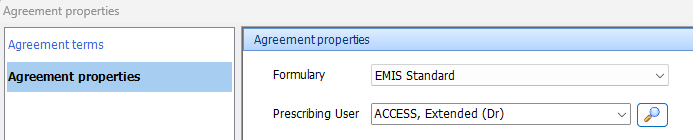
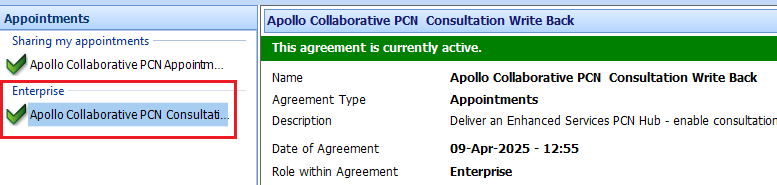
Click on OK. The Agreement should have a green tick next to it to show it is activated:
 Digital PCN HUB Optimisation