Depending on your role, you may need to log onto multiple EMIS Web organisations on the same PC. For example:
- if you’re undertaking specialist work on behalf of local GPs across multiple organisations, you will need access to EMIS Web for each organisation
- if you’re a community nurse travelling to different organisations, you may require access to EMIS Web on your laptop for each organisation
For users requiring access to multiple organisations, you can use the Configuration Switcher, which is deployed as part of the EMIS Web installation process. This allows you to switch between organisations on EMIS Web when required.
Configuration Switcher
Once enabled, the Configuration Switcher allows a user to switch between different EMIS Web organisations on the same device. The Switcher also stores these different organisations after you have logged in, allowing for a seamless transition between them when you need to change organisation.
Additionally, when an organisation is updated, the Configuration Switcher automatically downloads the most up to date version of EMIS Web (which is kept locally on that PC) when the user next switches to the organisation.
Enabling the Configuration Switcher
Follow these five simple steps to enable the configuration switcher:
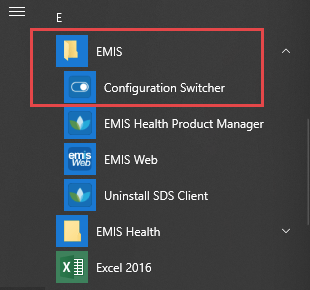
- On your Windows desktop, click Start and select All Programs
- Click the EMIS folder
- Click Configuration Switcher
4. On the Configuration Switcher screen, click Enable Switching (it will switch to Disable switching).
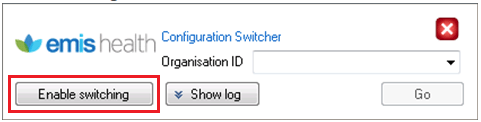
5. Enter the EMIS Organisation ID and press Go.
Every time EMIS is opened, the user will be prompted to enter the EMIS Org ID.
Change Organisation
Alternatively use Change organisation from the EMIS Login screen:

 Digital PCN HUB Optimisation