Your PCN Hub Service Delivery Model may require the PCN Hub to send follow-up Tasks back to the patients registered GP Practice. It may also require a GP Practice to send a Task back to the PCN Hub. To do this there are two steps that need to be completed:
- Activate the Cross Organisation Tasks Data Sharing Agreements
- Set up Teams to receive the tasks
Activate Data Sharing Agreements
Navigate to Configuration > Data Sharing Manager and select CrossOrgTasks in the menu. There will be two Data Sharing Agreements to Activate:
| Organisations creating tasks for me | Allows PCN Hub to send tasks to GP Practice |
| Organisations allowing me to create tasks | Allows GP Practice to send tasks to PCN Hub |
Select each agreement and click on the Activate Agreement button on the toolbar:
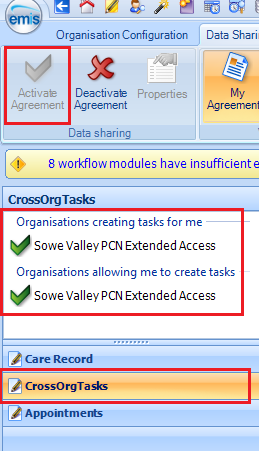
After activating the agreements log out and back into EMIS
Set up a Team – GP Practice
After the GP Practice and PCN Hub (optional) have activated their CrossOrgTasks Data Sharing Agreements they will then need to create a Team and staff members to that Team.
In Configuration > Organisation Configuration select Teams:

Select Add > Add Team:

Create a Team i.e ‘Enhanced Access Team’ and add members who you wish to administer these tasks. Make sure you select the ‘Yes‘ radio button for ‘Allow Acceptance of Tasks‘:
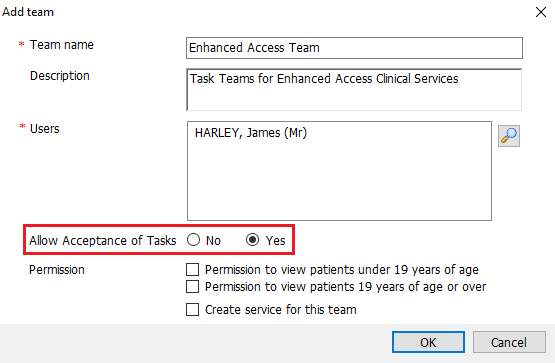
GP Practices and PCN Hubs may wish to create multiple Teams for each PCN Hub Service.
Enable Users to Accept Tasks from Sharing Organisations
Any user who is a member of a team must be enabled to accept workflow tasks from sharing organisations. Go to Configuration > Organisation Configuration and select Users. Search for the user you wish to edit. Open the user account (select Edit User or double click on account), select the Cross Organisation Sharing menu item and check the Yes radio buttons:

Sending a Cross Organisation Task
When a PCN Hub or GP Practice wishes to send a Cross Organisation Task, they must select the Teams tab find the organisation (GP Practice or PCN Hub) and the relevant Task Team:

 Digital PCN HUB Optimisation